IPTV Smart TV: How to Set It Up on Samsung, LG and Android TV
An IPTV smart TV setup takes about five minutes: install one app from the TV’s app store, link your line and pick a channel. This guide covers Samsung, LG, Android TV and Google TV sets, the speed 4K needs, picture settings and what to do when something goes wrong.
An IPTV smart TV setup means watching live channels and on-demand movies in an app that runs on the television itself, with no box and no extra remote. On a Samsung or LG set you install iBO Player from the TV’s app store and link it to your line; on an Android TV or Google TV set you install the same app and enter your login details.
The app is the easy part. What decides whether the picture holds up during a game is everything around it: which TV family you own, how the set reaches your router, the speed you have for 4K and a few picture settings most people never open. This guide takes each of those in turn, for US households and for viewers who watch the Spanish-language groups.
The steps match the installation guide, and the figures come from this site. If you are still deciding whether to subscribe at all, start with the IPTV subscription guide; this one is about getting a smart TV ready to watch.
Setup help in English and Spanish, 24 hours a day.
1, 2 or 3 screens, no contract, from $4.96 a month.
How IPTV smart TV viewing works
A smart TV is a television with its own operating system and app store, much like a phone. IPTV on that TV works the same way as any other app: the player connects over your internet, loads the channel list and the TV guide, and plays the channel you choose.
An IPTV smart TV setup always has three parts:
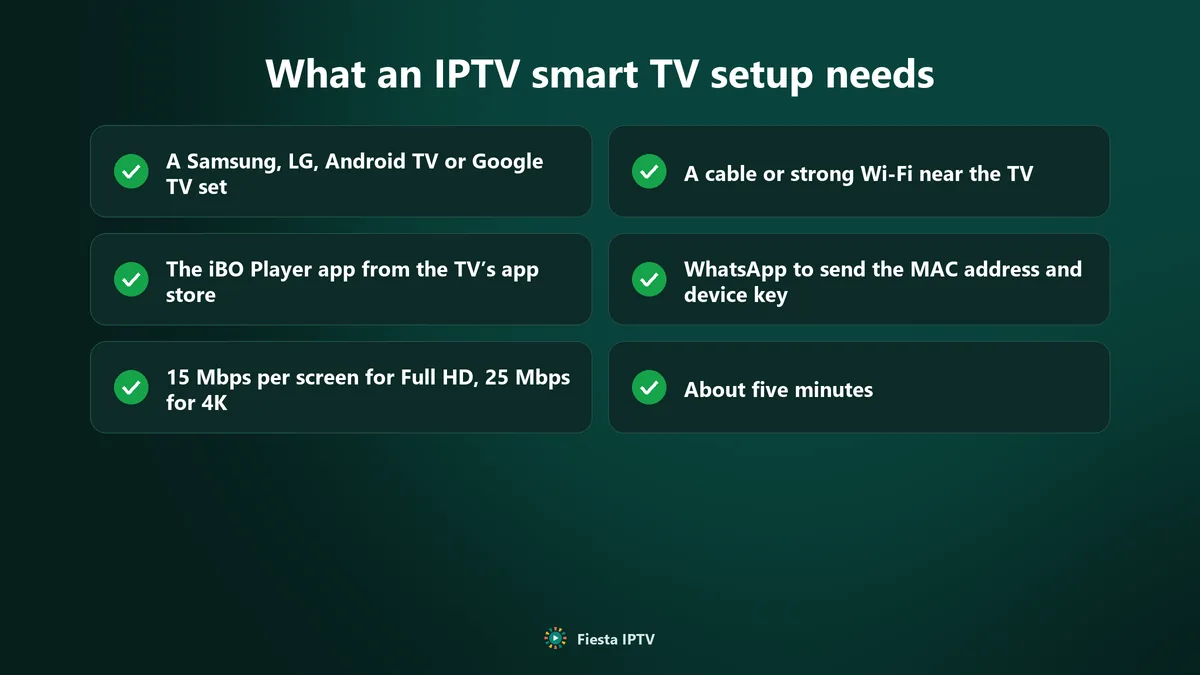
- The TV and its operating system: Samsung sets run Tizen, LG sets run webOS, and many other brands run Android TV or Google TV.
- The player app: with Fiesta IPTV it is iBO Player, at no extra cost. Other players such as IPTV Smarters or TiviMate also work with an M3U link or an Xtream Codes login.
- Your line: the personal access that opens 34,000+ live channels and 90,000+ movies and series until its expiration date.
Because the app runs on the TV, there is nothing to plug into an HDMI port and no input to switch. You press the app’s icon on the home screen and the channels are there. The trade-off is that the TV’s own processor, memory and network connection do the work, which is why the sections on speed and wiring below matter as much as the install itself.
Which IPTV smart TV app to install on each TV family
The app is the same on every television, iBO Player, but the way you install it and link it to your line depends on the TV family. Check your TV’s brand and operating system first, then follow the row that matches.
| TV family | Where the app comes from | How the line is linked |
|---|---|---|
| Samsung (Tizen) | The TV’s app store | Send the MAC address and device key on WhatsApp |
| LG (webOS) | The TV’s app store | Send the MAC address and device key on WhatsApp |
| Android TV | Google Play Store, or Downloader with code 481220 | Enter your login details in the app |
| Google TV | Google Play Store | Enter your login details in the app |
| Another brand or an older set | A Firestick or an Android box on HDMI | Depends on the device: ask support |
If you are not sure which system your TV runs, look at the home screen: the brand of the menus usually tells you. You can also send the model number on WhatsApp and support will tell you which IPTV smart TV route applies.
One line covers any of these TVs. You can move from the bedroom set to a new living-room TV later without buying again; only the number of screens playing at the same moment is limited by your plan.
IPTV smart TV setup on Samsung and LG
On a Samsung or LG smart TV, setup takes about five minutes and you never type a password with the remote. The app identifies the TV, and the line is linked to it remotely once you send two codes.
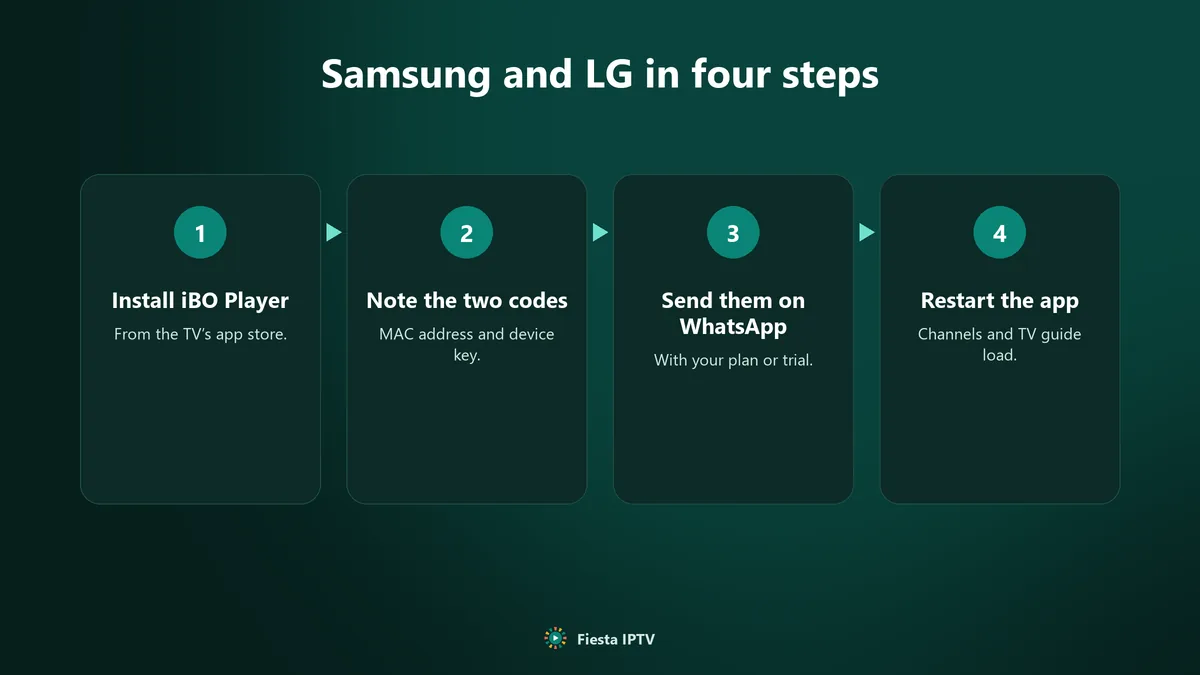
Step 1: install iBO Player
Open the app store on the TV, search for “iBO Player” and install the app. The menus look different on the two brands, but both have a search field in their app store.
Step 2: note the MAC address and device key
The first time the app opens, it shows a MAC address and a device key on screen. Take a photo of the IPTV smart TV screen with your phone so you do not mistype a character.
Step 3: send both on WhatsApp
Send the two codes on WhatsApp along with the plan you want, or with a request for the trial. Your login details are sent within minutes of the payment being confirmed.
Step 4: restart the app
Once support confirms, close the app and open it again. The channel list and the TV guide load, and you can pick a channel. If you would rather be walked through it, guided setup on WhatsApp takes under ten minutes.
We link your TV and confirm on WhatsApp.
The MAC address and device key, explained
The MAC address and the device key identify the screen so the line can be linked to that TV. They are not a password, and they give no access to your Wi-Fi, your TV account or anything else on the set.
A MAC address is a hardware identifier that every network device has, written as six pairs of letters and digits separated by colons. The device key is a second code shown by the app. Together they let the line be activated without you typing a long username and password with the arrow keys of a remote.
Three habits that save time
- Send a photo, not a typed copy: a zero and the letter O look alike on a TV screen.
- Keep the photo: it is the quickest way to answer if you ever need help with that TV.
- One TV, one pair of codes: each set shows its own, so a second TV needs its own message.
IPTV smart TV setup on Android TV and Google TV
On an Android TV or Google TV set, you install iBO Player from the Google Play Store and type in the login details you received. There is no MAC address step: the details themselves open the line.
- Open the Google Play Store on the TV.
- Search for “iBO Player” and install the app.
- Enter the login details you received for your subscription.
- Wait while the channels and the TV guide load.
- In Settings, choose HD, Full HD or 4K quality to suit the TV and your connection.
The Downloader route on Android TV
An Android TV can also take the same route as a Firestick: install the Downloader app, allow apps from unknown sources, enter the code 481220, and iBO Player installs in about two minutes. Use it if the Play Store route does not work on your set.
Typing with the remote
Login details are long, and the on-screen keyboard is slow. If your TV supports a voice remote or a phone keyboard, use it, and check each character before you confirm. A single wrong letter is enough to stop the line loading.
Other TVs: when a streaming stick is the better route
If your TV is not a Samsung, LG, Android TV or Google TV set, or if it is an older model without an app store, a Firestick or an Android box plugged into an HDMI port is the simplest fix. The TV becomes a screen, and the stick runs the app.
A stick is also worth considering on an IPTV smart TV that works but feels slow: menus that lag, an app store that no longer offers updates, or a set that struggles with the channel list. A stick has its own processor and its own remote, and you can move it to another TV in seconds.
| Point | App on the smart TV | Firestick or Android box |
|---|---|---|
| Extra device | None | One stick on an HDMI port |
| Remote | The TV’s own | The stick’s remote |
| Setup | App store, then MAC address or login | Downloader, code 481220 |
| Older or unsupported TV | Not possible | Works on any HDMI TV |
| Moving to another TV | Set up the new TV | Unplug and plug in |
The Firestick setup has its own guide: see IPTV on a Firestick for every step. For 4K through a stick, both the stick and the TV must support 4K.
Using another player app on your TV
If you already use IPTV Smarters or TiviMate on your IPTV smart TV, ask for the line as an M3U link or an Xtream Codes login instead. The channel list and the on-demand library are the same as in iBO Player.
Two points to keep in mind. First, the player must be available on your TV: check its app store before you ask for the line in that format. Second, a third-party app is outside the provider’s control, so problems caused by it are not covered by the refund policy. If you are not attached to another app, iBO Player is the route the setup steps and the support team are built around.
| Format | What you enter | Works with |
|---|---|---|
| MAC address and device key | Nothing: support links the TV | iBO Player on Samsung and LG |
| Login details | The details you received | iBO Player on Android TV and Google TV |
| M3U link | One web address | Players such as IPTV Smarters or TiviMate |
| Xtream Codes login | Server, username, password | Players such as IPTV Smarters or TiviMate |
Internet speed for 4K on an IPTV smart TV
Allow 25 Mbps for each screen playing in 4K, 15 Mbps for Full HD and 10 Mbps for HD. Those figures are per screen playing at the same time, so add them up when several TVs are on.
| Picture | Speed per screen | Good fit |
|---|---|---|
| 4K | 25 Mbps | A 4K TV in the living room |
| Full HD | 15 Mbps | A bedroom TV or a Full HD set |
| HD | 10 Mbps | A small TV or a weaker connection |
A 4K channel only looks like 4K on a 4K television. On a Full HD set, the Full HD version of the same channel gives the same result with less data. Fiber, cable, DSL and 4G or 5G home internet all work, as long as the connection is steady.
Measure the speed at the TV, not at the router
The speed on your internet bill is what reaches the router. What counts for an IPTV smart TV is what reaches the television, after the walls, floors and other devices in between. Run a speed test on a phone held next to the TV, in the evening when the household is online, to see the figure that matters.
Wired or Wi-Fi: connecting your IPTV smart TV
If your TV has an Ethernet port and the router is within reach, a cable gives the steadiest picture. Wi-Fi weakens through walls and floors, so a TV in an upstairs bedroom or a finished basement often gets a much weaker signal than one next to the router.
- Ethernet cable: the most stable link, for a TV close enough to the router.
- Powerline adapter: carries the connection over your home’s electrical wiring to a plug near the TV, then a short cable to the set.
- Mesh point: a Wi-Fi unit placed near the TV, so the signal travels a short distance to the set.
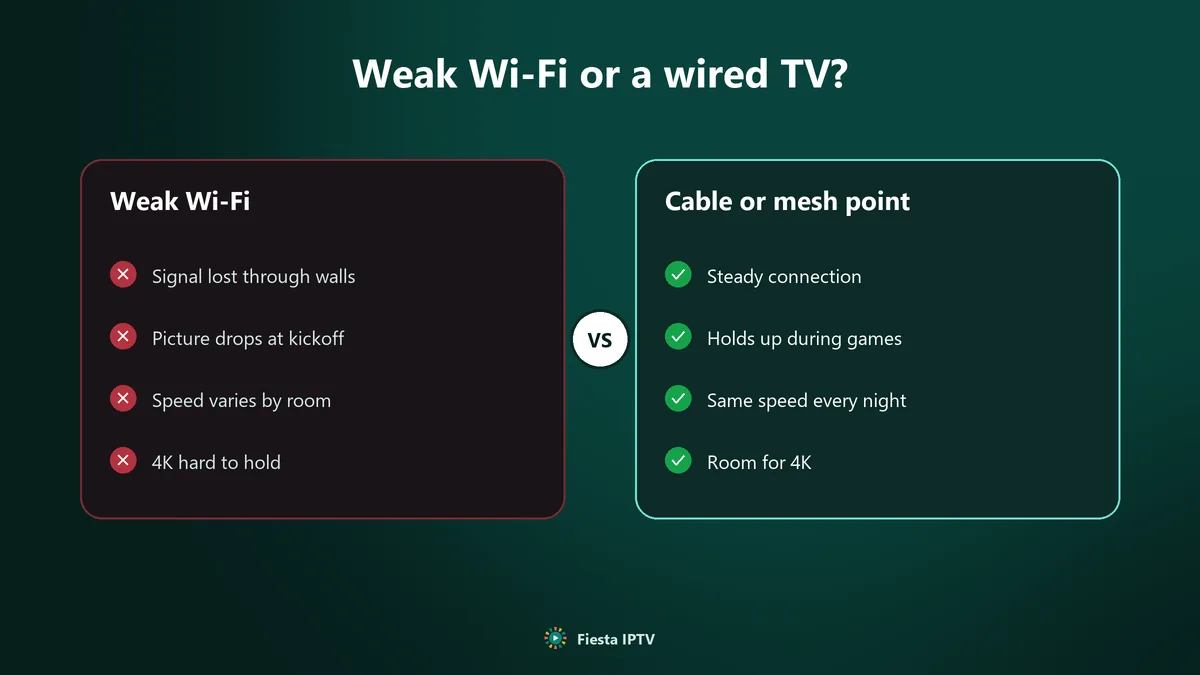
If Wi-Fi is your only option, keep the router out of cabinets and away from the back of the TV, and use the 5 GHz network if your router offers one and the TV is in the same room or close by.
Picture settings for IPTV on a smart TV
Two settings decide what you see on an IPTV smart TV: the version of the channel you choose in the app, and the picture mode of the TV itself. Neither needs any technical knowledge.
Pick the right version of the channel
The main sports, movie and entertainment channels come in 4K, with Full HD, HD and SD versions listed next to them. Choose 4K on a 4K TV with a strong connection, Full HD on a Full HD set, and HD when the connection is weaker. Switching to a lower version is the quickest fix when a busy evening slows your connection.
Adjust the TV’s picture mode
Most smart TVs have picture modes with names such as Standard, Movie or Sport, and a setting that smooths motion. Try each mode on a live game and on a movie, and keep the one that looks natural to you. The names and menus vary by brand, so look in the TV’s picture or display settings.
Getting around the app on the big screen
Once the line is linked, the IPTV smart TV app shows live TV, movies and series in separate menus. The live channels are grouped by country and by theme, so you go straight to the group you want instead of scrolling through 34,000 entries.
- United States: local and national channels in their own group.
- Spanish-language groups: Mexico, Spain, Argentina, Colombia, Chile, Peru, the Caribbean and Central America.
- Sports: the NFL, NBA, MLB, NHL, Liga MX, the Champions League and more, with a category for pay-per-view events.
- TV guide (EPG): what is on now and next, on the live channels.
- Catch-up: pause live TV or rewind to a moment you missed.
- On demand: most titles have English audio or subtitles, and many have Spanish audio or subtitles.
Spend the first evening learning three things with the remote: how to open the TV guide, how to switch between groups and how to pause and rewind a live channel. That is most of what daily viewing on an IPTV smart TV involves. The full channel picture is on the channel list.
Several TVs on one IPTV smart TV plan
A screen means a TV or device playing at the same moment, not a TV with the app installed. On a 1-screen plan you can set up the living-room TV, the bedroom TV and a phone, but only one of them plays at a time.
If two TVs are often on together, for example the game in the living room and a telenovela in the bedroom, that is two screens. Every plan opens the same channels and library; only the length and the number of screens change the price.
| Screens at once | 1 month | 12 months | 24 months |
|---|---|---|---|
| 1 screen | $17 | $77 | $119 |
| 2 screens | $29 | $109 | $199 |
| 3 screens | $39 | $189 | $297 |
Each price is a single payment for the whole period, with no setup fee, no equipment rental, no contract and no automatic renewal. The 3-month and 6-month plans are on the price list.
One payment, no contract, no automatic renewal.
IPTV smart TV troubleshooting
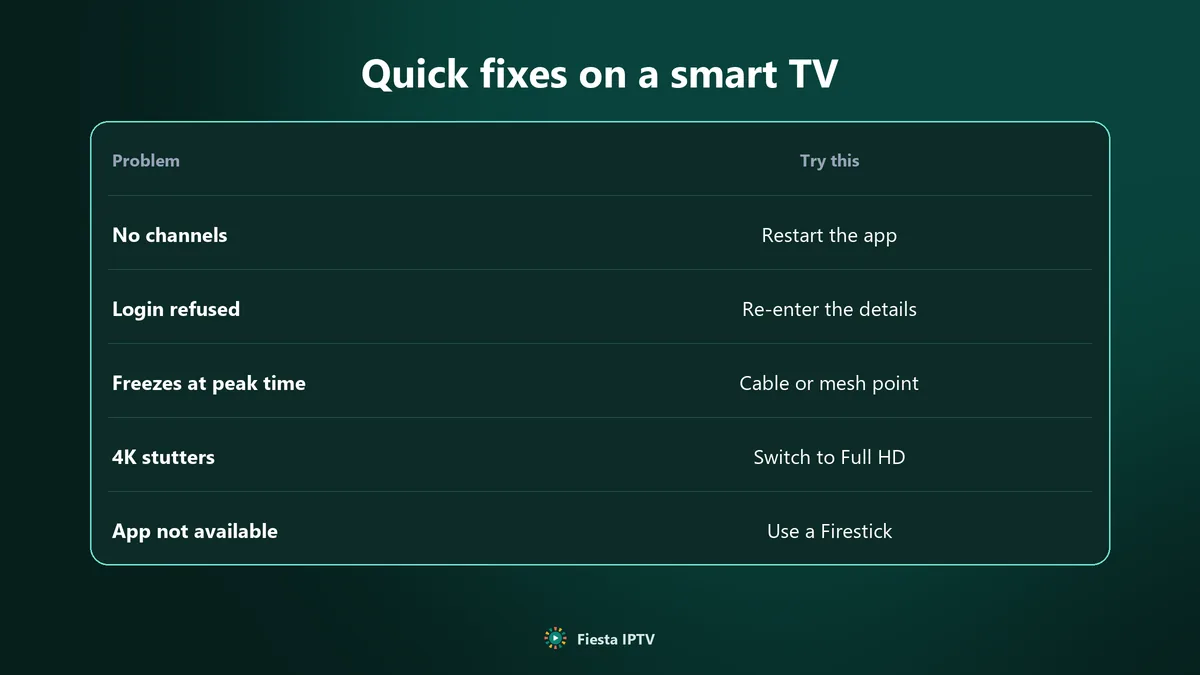
When something goes wrong on an IPTV smart TV, start with the simplest checks: restart the app, check the connection near the TV, and try a lower version of the channel. If that does not solve it, send a message on WhatsApp with your TV model and what you see on screen.
| What you see | Likely cause | What to try |
|---|---|---|
| No channels after setup | App not restarted after confirmation | Close iBO Player and open it again |
| Login not accepted | A character typed wrong | Re-enter the details slowly, or ask support |
| Picture freezes at peak time | Weak Wi-Fi at the TV | Cable, powerline adapter or mesh point |
| 4K stutters, Full HD is fine | Not enough speed for 4K | Watch the Full HD version |
| 4K looks no sharper | The TV is not a 4K set | Use the Full HD version |
| App will not install | TV too old or app not listed | Plug in a Firestick or Android box |
Test before you blame the service
If a channel plays well on a phone next to the router and poorly on the TV upstairs, the problem is the signal in that room, not the line. Fiesta IPTV aims for 99.9% uptime with redundant servers and anti-freeze protection, but no provider controls the Wi-Fi inside your home.
Test your IPTV smart TV setup before paying
The best IPTV smart TV test is your own TV, on your own connection, at the time you usually watch. Fiesta IPTV offers two trials, and both open the full service.
- Free 1-hour trial: enough to install iBO Player, link the TV and check that your channels are there. One per customer, no payment.
- 24-hour trial for $2.95: covers an evening game, the 4K picture on the main TV and the set furthest from the router. The $2.95 is taken off your first subscription.
- 7-day refund: every new subscription can be refunded within 7 days, after you contact support so a technician can try to fix the problem.
The refund does not cover renewals, the 24-hour trial, or problems caused by your own connection or by a third-party app, which is one more reason to test the Wi-Fi at the TV during the trial. The full conditions are in the refund policy, and what a subscription does and does not include is set out in the IPTV subscription guide. To turn the trial into a structured test, the best IPTV guide gives a scoring sheet.
$2.95, taken off your first subscription.
How this guide was written
This guide was prepared for Fiesta IPTV with the help of AI writing tools. Its prices, trial terms, refund conditions, device steps and speed figures are the ones published on this site. If you spot something that looks out of date, tell us through the contact page.
Frequently asked questions
- Which app do I need for IPTV on a smart TV?
- Fiesta IPTV uses the iBO Player app, at no extra cost. On Samsung and LG smart TVs it comes from the TV’s app store; on Android TV and Google TV it comes from the Google Play Store. The line is also available as an M3U link or Xtream Codes login for IPTV Smarters or TiviMate.
- How do I set up IPTV on a Samsung or LG smart TV?
- Install iBO Player from the TV’s app store and open it. The app shows a MAC address and a device key; send both to Fiesta IPTV on WhatsApp. Once support confirms, restart the app and the channels and TV guide load. Setup takes about five minutes.
- What internet speed does an IPTV smart TV need for 4K?
- Fiesta IPTV needs 25 Mbps for 4K, 15 Mbps for Full HD and 10 Mbps for HD, for each screen playing at the same time. A 4K picture also needs a 4K TV, and an Ethernet cable or a mesh point near the TV gives a steadier picture.
- Can I watch Fiesta IPTV on an older TV without apps?
- Yes. Plug a Firestick or an Android box into the TV’s HDMI port and install iBO Player on it. On a Firestick, install the Downloader app, allow apps from unknown sources and enter the code 481220. Fiesta IPTV then works on any TV with an HDMI port.
- Can Fiesta IPTV play on two smart TVs at once?
- Yes, with a Fiesta IPTV 2-screen or 3-screen plan. A 1-screen plan can be installed on several TVs, but only one plays at a time. Two screens cost $29 for 1 month or $109 for 12 months.
- Can I try Fiesta IPTV on my TV before paying?
- Yes. Fiesta IPTV offers a free 1-hour trial and a 24-hour trial for $2.95, which is taken off your first subscription. Every new subscription can also be refunded within 7 days, after contacting support, under the refund policy.